Showing posts with label C#. Show all posts

Wednesday, May 28, 2008

Hudson adds support for StyleCop

Last week Microsoft released StyleCop (aka Microsoft Source Analysis for C#), a tool that analyzes C# code and enforces a certain code style (similar to Checkstyle). The tool will go through all C# source files and mark the code style violations. Now Hudson (a Continuous Integration server) together with the Violations plugin has added support for parsing the StyleCop XML report and display the results for every build.

The Violations plugin displays a trend graph over builds so it is real easy to see that your project is progressing in the right direction (decreasing the number of violations). As you can see the plugin also supports FxCop reports.


Each build will display a listing of the files that are violating the code style, and it is also possible to see the number of fixed (or introduced) violations for every build.


Clicking on a file will display excerpts from the C# code showing the violations.


Setup
Follow the guideline here after downloading StyleCop. Add the <Import Project="$(ProgramFiles)\MSBuild\Microsoft\SourceAnalysis\v4.2\Microsoft.SourceAnalysis.targets" /> to every csproj file that you are building within Hudson. When the VS project is built, StyleCop will store a file named StyleCopViolations.xml [Update, if you are using StyleCop 4.2 enter SourceAnalysisViolations.xml in the project folder. As of now, there is no way to store it elsewhere. The XML file contains all violations that were found in the Visual Studio project.

Hudson Configuration
To configure the violations plugin, enable the "Report violations" check box. If there are several VS projects in the build, you should use **/*/SourceAnalysisViolations.xml as it will find XML files in all sub folders.


After configuration, start a new build to analyze and display the StyleCop results in Hudson. To see a trend graph you need at least two successful builds.

Tips
  • Do not enable all rules, choose those that are valid for your organization and make sense for you.
  • Do not activate too many rules at first, as it probably will generate too many violations. Too many violations may be ignored by your co-workers, as it seems to be too much work to fix them all. When the most critical code style violations has been fixed, increase the number of rules.

Wednesday, May 14, 2008

Guide to building .NET projects using Hudson

In this guide I'm going to show how to set up a C# project on the Continuous integration server Hudson. I've been using Hudson on .NET projects since september and it works really well. I'm going to use Media Portal as the example project.
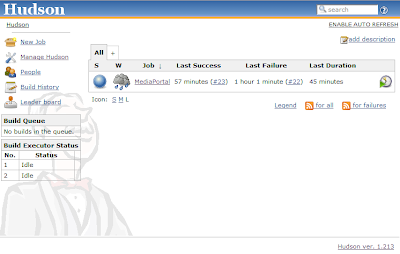
The below goals will be solved in this guide:

  • Get the source code from the Subversion repository
    • Link change logs to the repository browser using ViewVC
  • Build the project using MBuild

  • Run the tests using NUnit and display the results together with a trend graph

  • Publish artifacts from the build (nightly builds)

  • Run FxCop on an assembly and display warnings (linked with source code) and a trend graph

  • Search the source code for TODO, FIXME comments and display the open tasks with links to the source code

Initial downloads
The following files are needed besides Java (at least 1.5). Get the latest version of all files and notice that the Hudson file has the extension .war and plugins .hpi. This guide assumes that MSBuild, NUnit and FxCop are already installed and working.

Installation steps
I'm going to install Hudson into c:\Program Files\Hudson.

  1. Copy the hudson.war file to c:\Program Files\Hudson

  2. Start Hudson through "java -DHUDSON_HOME=data -jar hudson.war". Verify that you can access Hudson through http://localhost:8080

  3. Copy the plugins to c:\Program Files\Hudson\data\plugins

  4. Stop Hudson by pressing Ctrl+C in the command prompt where you started Hudson.

  5. Start Hudson again and you should be set to go.

Hudson system configuration
Follow the following steps to configure the tools that Hudson will use in building MediaPortal.

  1. Go to the System configuration at http://localhost:8080/configure.

  2. MSBuild Builder - Set the path to the MSBuild tool to C:\Windows\Microsoft.NET\Framework\v2.0.50727\msbuild.exe


MediaPortal job configuration

  1. Click the "New job" link at the home page.

  2. Enter the name "MediaPortal", check the "Build a free-style software project" and press OK.


Source code management
MediaPortal uses a Subversion SCM. Hudson supports CVS and SVN out of the box, but there are many plugins for other SCMs. After checking out the files from the repository Hudson will show the new change sets since the previous build in the Build page. A detailed view of change sets can be seen in the Changes page as the name of the developer, files that were changed and the comment for the change. Each change set is linked to the MediaPortal subversion repository browser, so it is easy to browse the actual file that changed.

  1. Press the Subversion radio button to configure the SCM.
  2. Repository URL=https://mediaportal.svn.sourceforge.net/svnroot/mediaportal/trunk/mediaportal

  3. Local module directory=.

  4. Press the Advanced button

  5. Repository Browser=ViewSVN, URL=http://mediaportal.svn.sourceforge.net/viewvc/mediaportal/
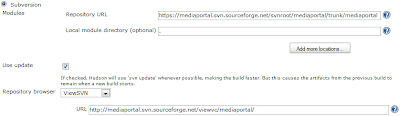
To test the configuration, press Save and then Build. The source code will be downloaded from the repository and put into the Workspace. If there were any changes in the SCM repository they can be viewed in the Changes page.
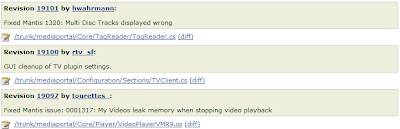

When the build is completed verify that it has checked out the code by going to the Workspace page. Using the Workspace page you can browse and view the files that has been checked out and it doesn't matter if the files are on the master or on a distributed slave!

Building the project
Im going to build a Release version of MediaPortal using MSBuild and the mediaportal.sln solution file. Hudson also supports NAnt and many other build tools through plugins.

  1. Click the "Add build step" and select "Build a Visual Studio project or solution using MSBuild."

  2. MsBuild Build File=mediaportal.sln

  3. Command Line Arguments=/p:Configuration=Release
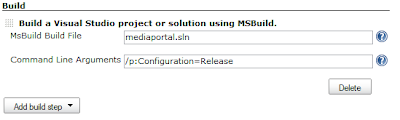
To test the configuration, press Save and then Build. Now the source code should be updated if there any changes and then built using MSBuild. While the build is running you can check the Console log that is updated as the build continues.


Running unit tests and showing the result
Hudson can read NUnit XML reports and display the results of them for each build. If a test fails, then it will be displayed in the Status page. Hudson will also show how many builds ago a test failed (it's age); that way it is simple to see if a test failed in the current build. If a build has at least one failing unit tests then the build will become Unstable (yellow); otherwise it is marked as Successful (blue). After two builds you will get a trend graph showing the test results over time. To run the NUnit tests, I'm running nunit-console from Hudson after the MSBuild has compiled all files.

  1. Click the "Add build step" and select "Execute Windows batch command"

  2. Command=
    "c:\program files\nunit\bin\nunit-console.exe" MediaPortal.Tests\bin\RELEASE\MediaPortal.Tests.dll /xml=nunit-result.xml /config=test.config
    exit 0

  3. Check the "Publish NUnit test result report" and enter "nunit-result.xml"
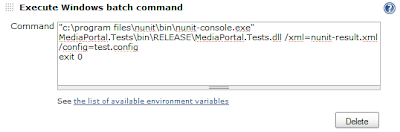
Start a new build, now the unit tests will be run and their results are collected at the end of the build. When the build is completed, you can see how many tests there were, and how many failed, in the build in the Status page.
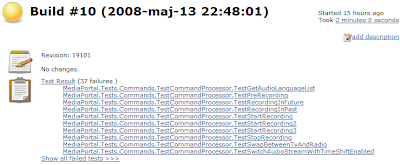
More information on namespace detail can be shown in the Test result page.
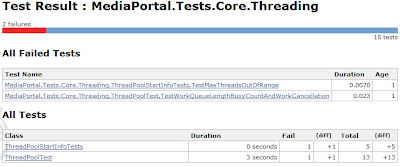
The test results are then displayed as a trend report. (This trend graph is copied from my python project, as it shows a variation over time)


Archiving build artifacts
It is good to archive the outputs (artifacts) from the build, so they can be retrieved later. This way it is possible to get a version of MediaPortal that was built a week ago, and compare the functionality to one built today. Hudson can be configured to store any number of files for each build, it can also be configured so only the latest successful build's artifacts are stored. As I'm not really sure what the output from MediaPortal is, I'm going to show how to archive the files for the MPInstaller.

  1. Click the "Archive the artifacts".

  2. Files to archive = MPInstaller\bin\Release\*

In the next build, Hudson will store all files in the MPInstaller release folder so it can be retrieved later even if there are newer builds available.


Analyzing code with FxCop
Hudson can collect output from several quality metric tools and show them for each build. Similar to the unit tests, they will be displayed in a trend graph. For .NET projects, it is good to use FxCop. FxCop analyzes managed code assemblies and can be very good to use but it may also generate too many warnings at start, in this example I will only use the security rules and analyze the Core.dll assembly.

  1. Click the "Add build step" and select "Execute Windows batch command"

  2. Command =

    "c:\Program Files\Microsoft FxCop 1.35\fxcopcmd.exe" /file:Core\bin\Release\Core.dll /rule:SecurityRules.dll /out:fxcop-result.xml
    exit 0

  3. Check the "Violations" check box, and set fxcop=fxcop-result.xml
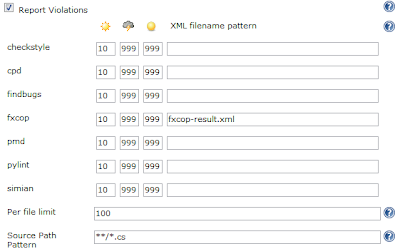
Next build will take considerate longer time, as FxCop goes through the assembly and analyzes it to find potential problems. When the build finishes, you will see a nice summary on how many violations there are in the current build.

Finding source code comments
A nice plugin is the Tasks plugin as it will go through the sources, and find specific comments that should be watched. In this example I'm going to search for TODO or FIXME comments,

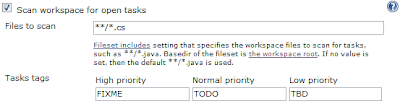
  1. Click the "Scan workspace for open tasks".

  2. Files to scan = **/*.cs

  3. High priority=FIXME

  4. Normal priority=TODO

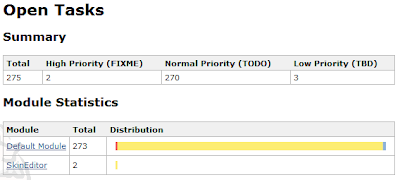
If the plugin finds any comments in the source they will be displayed in the build page.
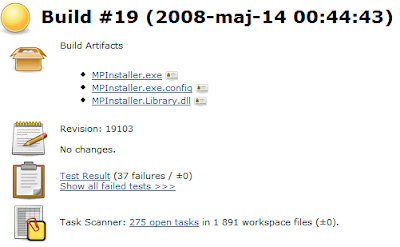
There will also be a trend graph so it is possible to monitor that the tasks are decreasing over time. Together with the summary on what comments were found, the full source code can be viewed.


Summary
I hope this was a useful guide to start building .NET projects with Hudson, one of the many CI servers. As shown above it does not take much configuration to start building a project using Hudson. The best way to start using continuous integration is to start building the project. Then focus on running unit tests and other quality metrics so you can monitor the quality progress on your project.

Currently there are some plugins in the pipeline that could be interesting for .NET developers:
  • A SCM implementation for Microsofts Team System

  • Support for CodePlex issues and Wiki words in change set comment. And a very simple configuration to check out code from a CodePlex project

  • Support for displaying coverage stats using NCover and MS own coverage tool

Thursday, December 21, 2006

OO Parenting by MS

I really love object orientation (OO), because it is so easy to build software using it; and it is so easy to totally screw up using it. Today I was surprised when I was trying to find out some information about the Select method in System.Windows.Forms.Control. The documentation for the Select method states what the method does and doesn't do, but it also informs what inheriting classes that does not support it. Of course, every parent class should know everything about the inheriting classes; and have documentation on everything

Excerpt from the documentation:
The Windows Forms controls in the following list are not selectable. Controls derived from controls in the list will also not be selectable.
* Label
* Panel
* GroupBox
* PictureBox
* ProgressBar
* Splitter
* LinkLabel (when there is no link present in the control)

C'mon, why put the Select method in the Control class if they know that many inheriting classes will not implement it at all. This solution/idea reeks of bad design! If a Control does not support a certain functionality, then that class should not have a method pretending to support the functionality. But this is not the first time I found a similar problem with the "design" of Windows Forms, so I will stop whining here....

Monday, November 20, 2006

Localisation with VS2005 will slow you down

In my previous blog about a localisation that went sour, I mentioned that the time for building a localised application takes longer and longer for every language that is added. I have now quantified my feeling and found out that adding a language adds 15-20 seconds for each language. Now that doesn't sound that bad right? Wrong, If you develop an application that takes one minute to build and adding languages almost triples that time, then it becomes tedious very quickly.

This is what I found out (table and graph):

  • Default language took 69 seconds to build
  • With two languages it took 85 seconds to build (16 extra seconds)
  • With four languages it took 118 seconds to build (49 extra seconds)
  • With six languages it took 144 seconds to build (75 extra seconds)
If a normal developer compiles 10 times an hour to test something, he/she will waste 12 minutes, just sitting to wait for VS2005 to build. I meanthat is an outrageous extra time, and I wonder if we can send a invoice to Microsoft for those hours that we just wait for the build complete? And I guess we have to make the work day longer as we get much less done.

For this project, the solution was to remove all language resource files from the project file. This means that the only language that is supported in mid-development is "default" and nothing else. So fixing those too narrow labels for localised texts has to wait for another day. The tool do add/remove all those languages to/from the project file is developed in house and can not be shared unfortunately. The tool is very simple to create, but in my view unnecessary.

Here we have a grave problem with the localisation in Visual Studio 2005. If it is done as MS wants, the build time to a project can (and probably will) go up for every language added. What is the outcome of that? Either the developer will stop adding localisations, constrain the development by only showing the default or sit and do nothing while the project builds. This is not a good solution. I would rather have a one-file seperate from the GUI, which reads on the fly when the application is started. That way the language files does not affect the build at all, and it will be a minor load time added for the user which probably will not be noticed.

Measurement notes:
  • This is an observation of an application that has been under development for 3-4 years.
  • They have tried to follow MS design guidelines.
  • Clear case is used with dynamic views, which could have an impact on the result as it needs to access 200 new files for every added language.
  • The application is not divided up into more than 2 GUI projects. Perhaps adding more sub projects could make the build quicker?
  • I used a C# application to measure the time it took to execute a bat file containing "devenv app.sln /build debug"
  • I measured each language addition at least 4 times

Monday, November 13, 2006

Localisation gone bad in C#

I'm doing maintenance on a huge C# application that was developed for a swedish customer. A while ago it was decided that the application should be sold outside Sweden, and therefore it had to be localised in english, romanian, chinese, etc. The application consists of roughly 200 controls/panels and forms. It was a huge task to translate everything, and from what I now can see MS Visual Studio 2005 did not help very much (as I'm maintaining it right now).

Apparently one new thing in VS, is that you can localise each and every control/form in the designer. That is nice when you have a few forms and controls that do not use the same words all the time. The developer creates a form, changes the language property and inserts all the translated texts. It is very easy to change a word in swedish to english, and it is all GUI based. But what happens if you have 200 controls/forms that share many texts? I have not figured out how to do that in VS2005 and GUI elements.

Developers are lazy (and they should be), so they will use the easiest way out. In this case it meant that nobody cared that the same words were used in many forms. Sometimes, people missed a label here and there. And for me maintaining it, it isn't nice.

I demand these things out of a localisation framework
  • One file for each language. - VS2005 brings you one file for each language and GUI control. In the project it means 1,000 new XML files to handle. That is not good.
  • One method call to get the texts for a language. - Yes, .NET helps partly with this (I will blog another rant about this later)
  • Ability to change locale during runtime. - Yes, it is possible in .NET.
I need the following tools:
  • Tool to find duplicates so they can be erased, and defined in one place. (Think OO but with languages) - VS2005 does not help you at all.
  • Tool to spell check localisation files. Apparently there is no such tool out there. - I have not seen anything in VS2005.
  • Tool to show missing translations for a language. - Nope, the company had to build their own software to extract missing translations and merging.
So what I got was to "translate" around 200 "missing" translation in an XML file, out of them there were 50 "OK", 5 "Cancel", 10 "Index", 15 "Close", etc. I can sure tell you that it could have been very tedious, but I built a very simple tool that would go through the file, so I didn't have to bother with copying/pasting. But once again, I have to develop tools to do stuff that the IDE should have helped me with.

Side note:
They discovered a side effect of adding new languages to the project files, for every new language you had to add 200 files, this made the project bigger and bigger. Now it takes eons to compile, and one of the core developers came up with the idea to remove all localisation files from the project files. When that was done, the time to compile was drastically cut which was good. Unfortunately we we're in integration testing and could not test any of the localisation bug fixes (D'oh).

So what did they end up with when using Visual Studio and .NET?
  • Duplicated texts all over the resource files.
  • 200 new files for each language
  • Compilation time sky rocketed (I will bring stats for this later this week)
  • Developed their own tools to handle the resource files (RESX) which require maintenance, etc.
  • Forms that were not properly translated, which wasn't found out until the system test phase (or even later).
  • And lets not forget the need to update the size of every button/label to cater for romanian texts. That is also tedious and really unnecessary work.
What is the proper way to do localisation in .NET and Visual Studio? What did they do wrong? What is the easier way out?